Tasks overview
Track follow-ups, callbacks, and team to-dos next to the conversations they came from.
Tasks give your team a shared to-do list inside Helios (follow up with a lead, restock equipment, call a member back) so work that starts in a conversation doesn’t end up in a separate app. Each task can link to a contact and a conversation, carry a due date, and belong to a teammate.
Open Inbox in the sidebar, then the Tasks tab next to Chats, to see everything in one place.
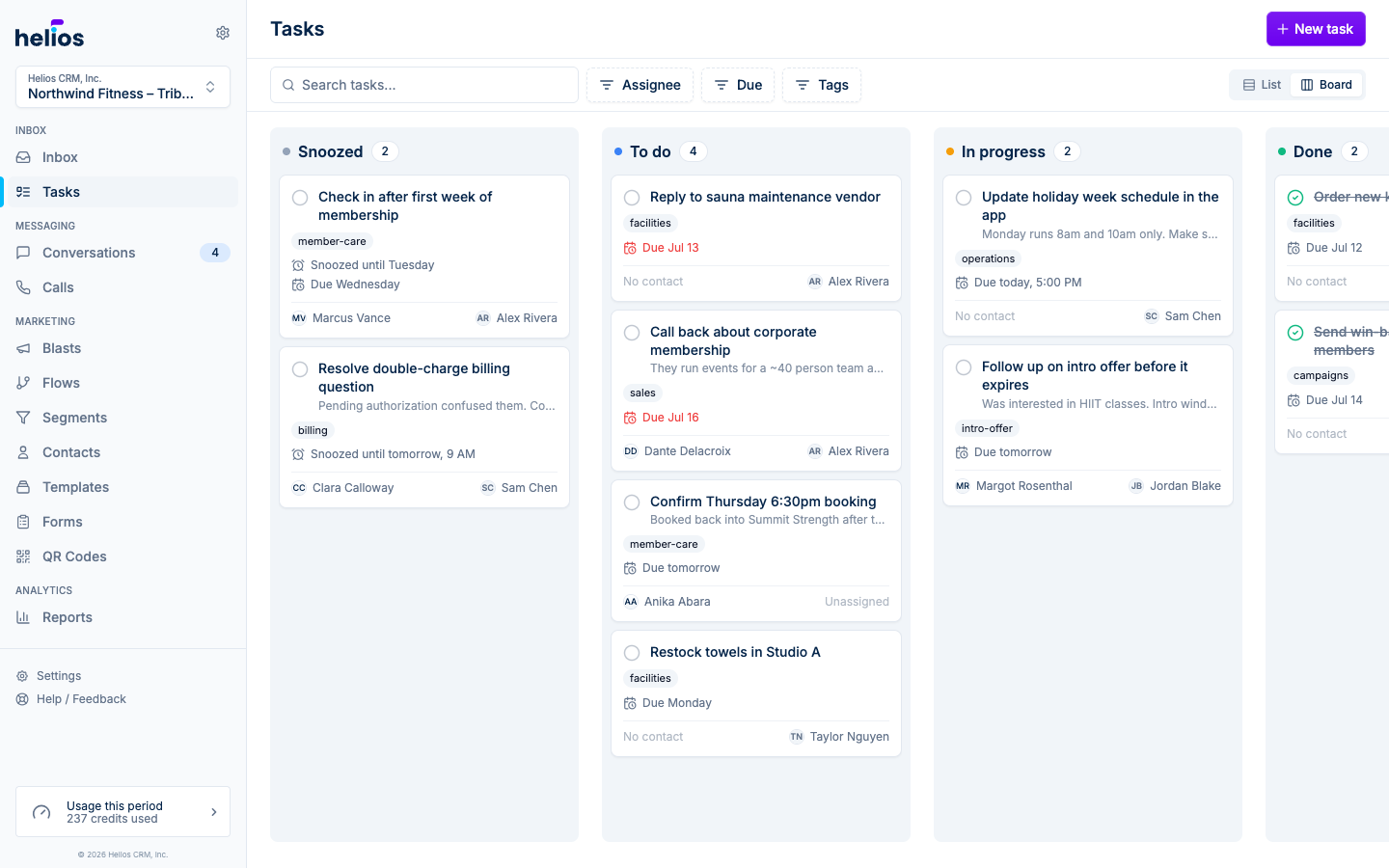
Board and list views
The Tasks page has two layouts, switchable with the List / Board toggle in the top right (your choice is remembered):
- Board: four columns, left to right: Snoozed, To do, In progress, Done. Drag cards between columns to change status.
- List: the same tasks grouped into collapsible sections in workflow order: To do, In progress, Snoozed, then Done (collapsed by default). Section headers show counts, including how many are overdue.
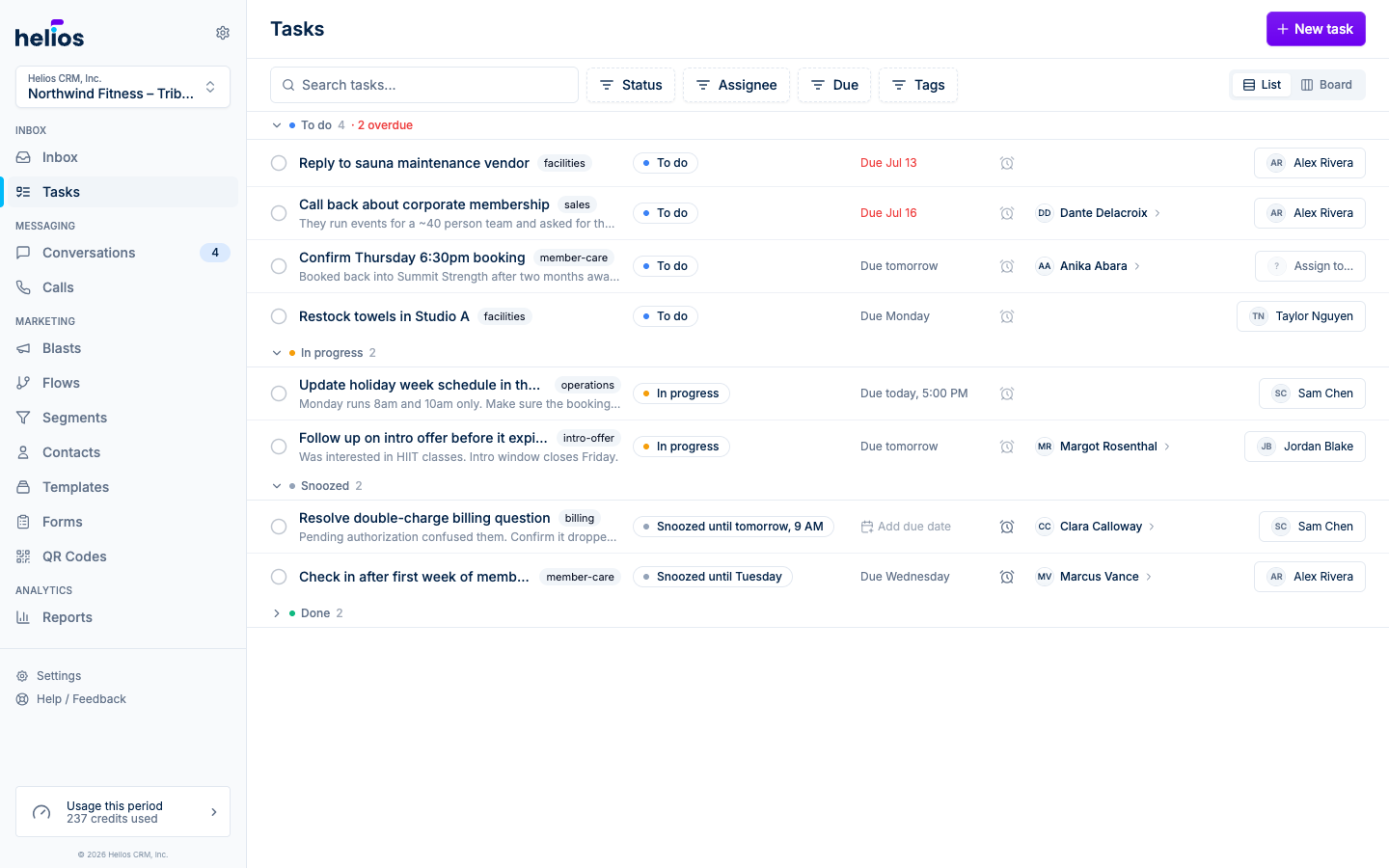
Every card and row shows the essentials at a glance: a complete checkbox, title, tags, due date, linked contact, and assignee, and in the list view you can change status, due date, snooze, and assignee inline without opening the task.
Search and filters
The bar above the board narrows things down:
| Filter | Options |
|---|---|
| Search | Matches task titles |
| Status | To do, In progress, Snoozed, Done (list view only) |
| Assignee | Assigned to me, Unassigned, or any teammate |
| Due | Overdue, Due today, Due this week |
| Tags | Any tag used on your tasks |
Clear all resets everything at once.
Tasks in Inbox
The Inbox Tasks tab is the same list, so you can jump between conversations and follow-ups without leaving the inbox.
Scope
Tasks belong to an inbox. Everyone with access to the inbox can see and work with its tasks, and switching inboxes switches the task list.
Next steps
- Creating and assigning tasks: every place you can create a task, and how assignment notifications work
- Statuses and due dates: the workflow, snoozing, and reminders
- Comments and history: discuss a task and see who changed what