Submissions
See who submitted, what they said, and follow up in one click.
Open any form and select Performance to see results for a date range: unique visitors, submissions, and conversion rate on the chart, plus Events and Referrers breakdowns and a Submissions table of everyone who submitted. Referrers is unique visitors for the period (Helios, Direct, social, or the site they were on). When those visits include campaign UTMs, a UTMs tab appears with a pill for each field that has values (Source, Medium, Campaign, Term, or Content).
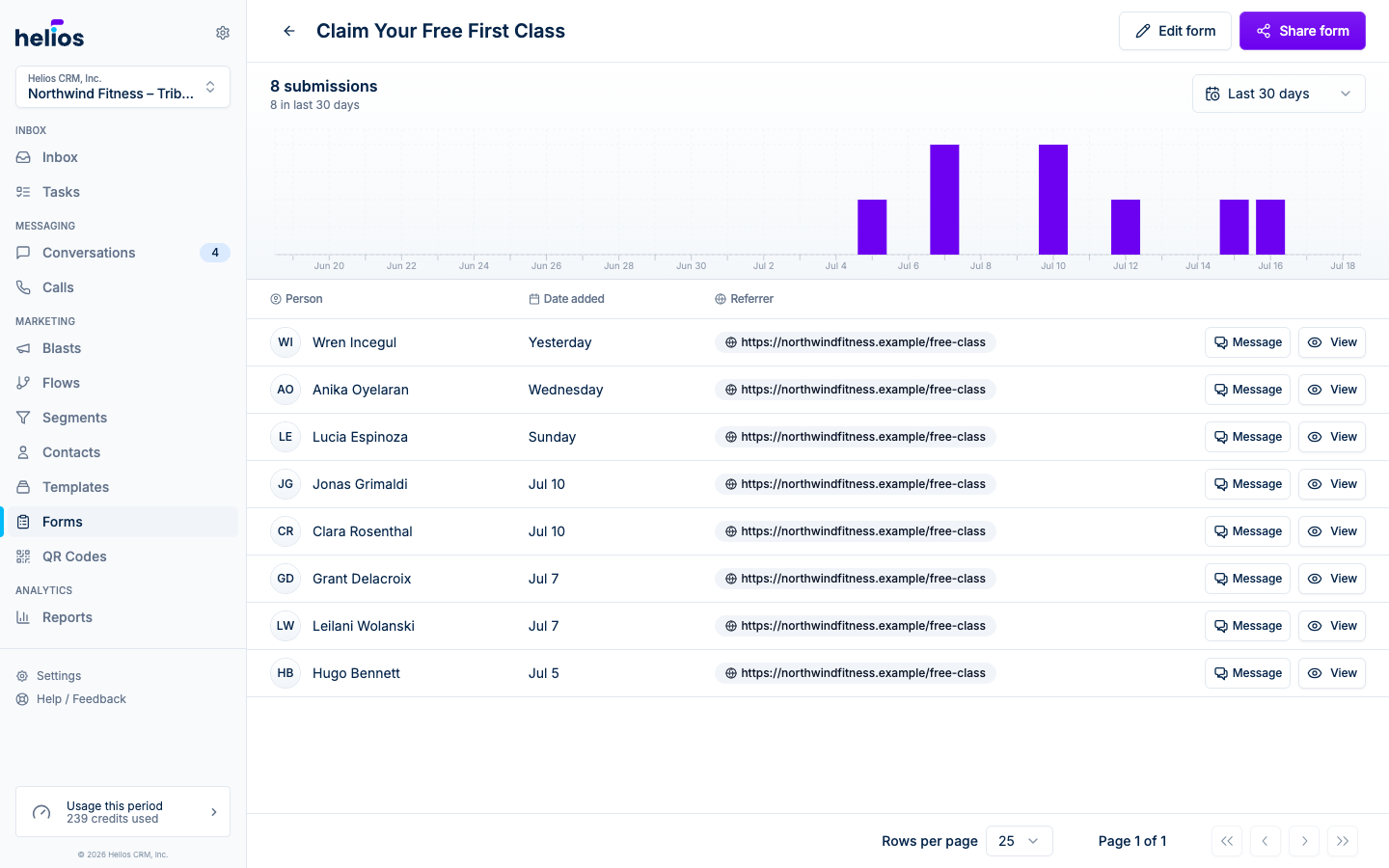
The submissions table
Each row shows the Person, Date, and Source (Helios, Direct, a social network, or the site they submitted from). Click the person or View to open a panel with every submitted field and its value. Labels keep the exact punctuation you entered, and multi-select answers are comma-separated. Signature answers show the drawn signature with when it was signed and the signer’s IP address; click it to see it full size. Signatures also appear in the submission message in the inbox. Message in that panel jumps to the contact’s conversation in the inbox. Speed-to-lead matters: texting a form submitter within minutes dramatically outperforms a next-day email.
Exporting to CSV
Download CSV in the table header exports every submission the form has ever received, not just the current page. The file starts with the submitter’s name, phone number, email, the submission date, and its source, followed by one column per form question using the same labels you see in the app. Signature columns show when the form was signed rather than the image.
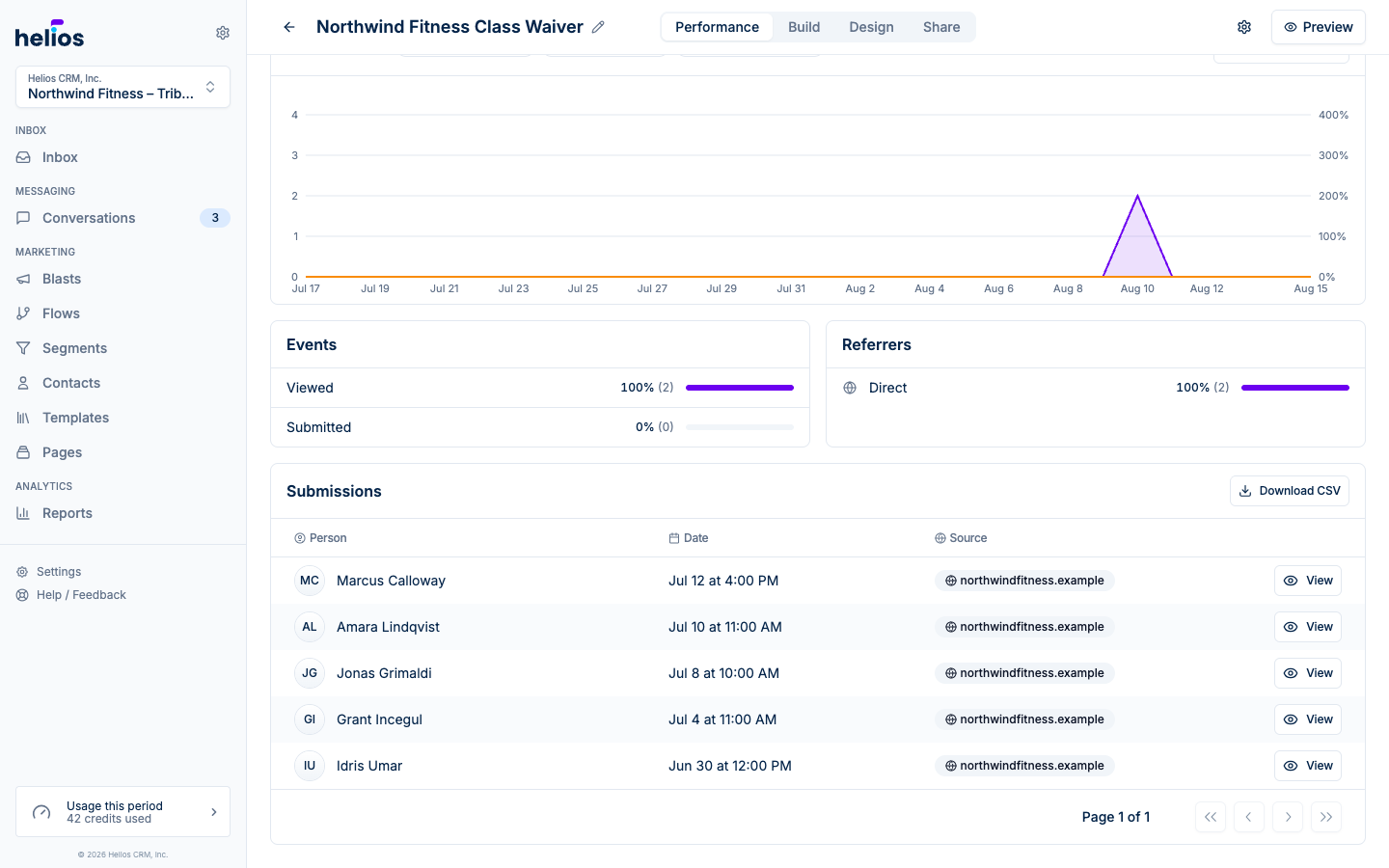
Understanding conversion
A view is counted when the form renders on its hosted page, inline on a website, or in a popup, and each visitor counts once per form, so refreshes and repeat visits do not inflate the number. Conversion rate is submissions divided by unique views for the selected period.
Use the date range control above the chart to compare trends over the last 7, 14, or 30 days, month or year to date, or a custom span.
What happens to the data
Every submission:
- Creates or updates a contact: matched by phone number, with name, email, and custom field answers saved as contact properties.
- Joins your lists: if the form has Add to list(s) configured, the contact is added immediately, which can fire an Added to list flow trigger for automated follow-up.
- Optionally lands in the inbox: with Send submission as message? on, the submission appears as a message in the contact’s thread, so whoever’s working the inbox sees it in real time.
- Optionally syncs to Mariana Tek: with the form’s Mariana Tek settings on, the person’s Mariana Tek profile is created or updated, and any waiver flag, credits, or products you chose are applied.
Automating follow-up
The manual Message button is great for high-touch follow-up, but most teams automate the first touch: