Scheduling
Send now, schedule for later, or park a blast as a draft.
The Review & send step is where you decide timing. Two options are always available:
- Send immediately: the blast starts sending as soon as you confirm.
- Select time: pick a date and time; the blast sits in Scheduled until then.
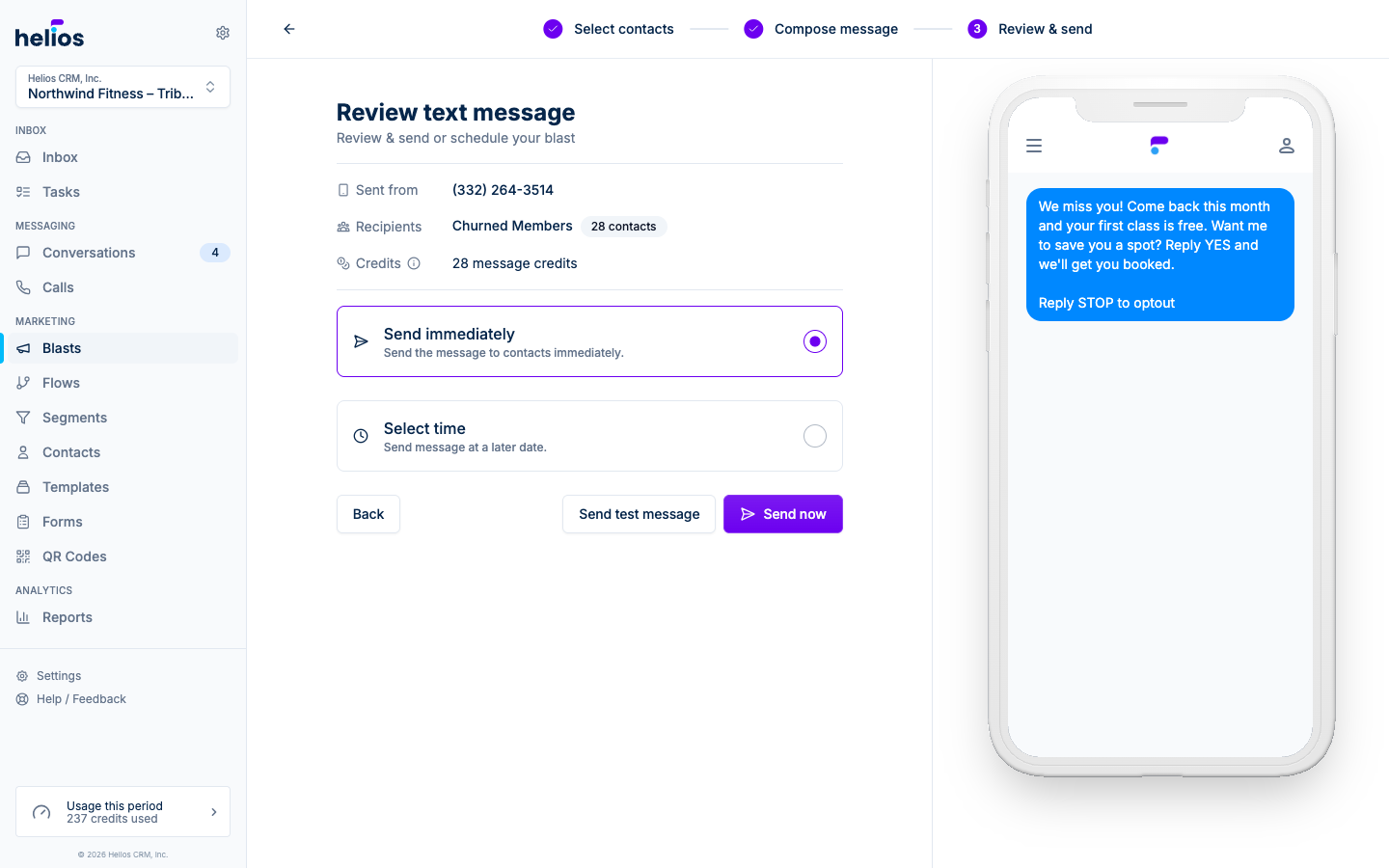
Test before you send
Send test message texts (or emails) a copy to you before the real send. It’s the fastest way to catch a broken link, awkward line break, or a merge field that didn’t resolve: the test renders exactly like the real thing.
Drafts
Open a blast and click Edit blast to get a third option: Draft (save the message without scheduling it). Drafts appear at the top of the Blasts page and can be edited, scheduled, or deleted (Cancel and delete) whenever you’re ready.
Changing a scheduled blast
Until the send time arrives, a scheduled blast is fully editable:
- Open it from the Scheduled section of the Blasts page. The banner reads Scheduled to send with the time.
- Click Edit blast to change the audience, message, or time.
- Save with Save & schedule, switch to Save & send now, or downgrade it to a draft.
Once a blast is Processing, the message is already going out. You can Cancel Message to stop remaining sends, but messages already delivered can’t be recalled.
Timing tips
- Match your audience’s day: mid-morning and early evening tend to outperform early morning for fitness audiences.
- Respect quiet hours. Carriers (and customers) frown on late-night marketing texts; schedule for daytime in your customers’ timezone.
- For recurring timing needs (a message every time someone joins a list), use a flow instead of manually scheduling blasts.