Team and roles
Invite teammates, choose Admin or Member access, and manage pending invites.
Settings → Team manages who can access your Helios organization.
Invite a teammate
Click Invite team member, enter their Name and Email, and pick a role:
- Admin: full administrative access to see and manage everything (settings, billing, integrations, all inboxes).
- Member: limited access to specific inboxes. Choose which inboxes they can see; everything else is hidden. Right for front-desk staff who work conversations but shouldn’t touch billing or automations.
Send invite emails them a link to create their account. Until they accept, they appear under Invited Members, where you can Revoke invite.
Roles at a glance
| Role | Access |
|---|---|
| Owner | The account creator. Everything, including ownership itself. |
| Admin | Everything an Owner can do day-to-day: settings, team, billing, all inboxes. |
| Member | Only the inboxes assigned to them: conversations, contacts, day-to-day messaging. |
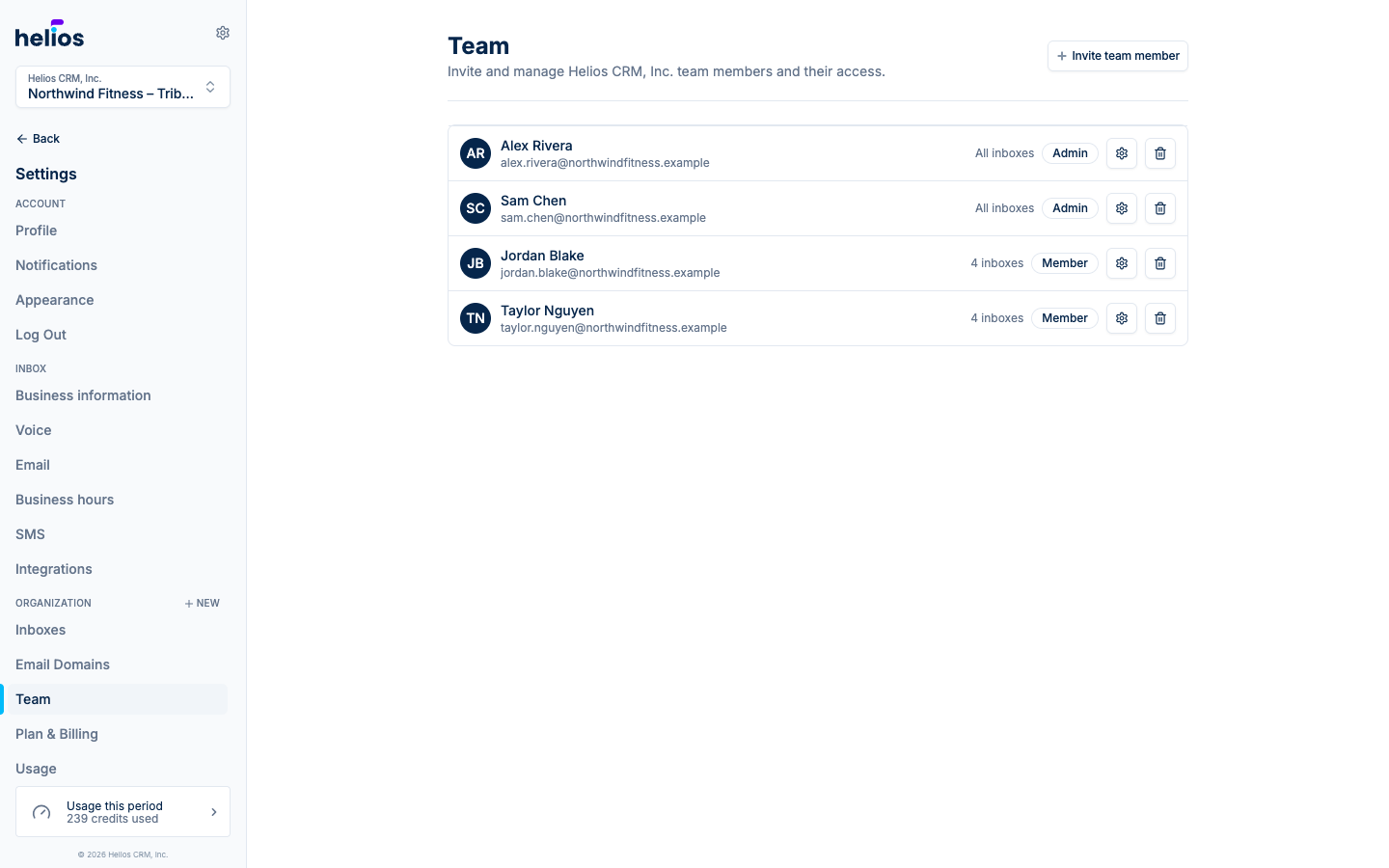
The team table shows each person’s Role and inbox Access (e.g. “All inboxes”).
Changing or removing
Use the gear icon on a member’s row to change their role or inbox access, and the trash icon to remove them. Removal takes effect immediately; their conversation history and past activity stay intact.