Creating and assigning tasks
Create tasks from anywhere work comes up (the Tasks page, a conversation, a contact, or a flow) and hand them to a teammate.
Tasks can be created wherever the work comes up, so you never have to leave a conversation to remember a follow-up.
The New task dialog
However you start one, you land in the same dialog:
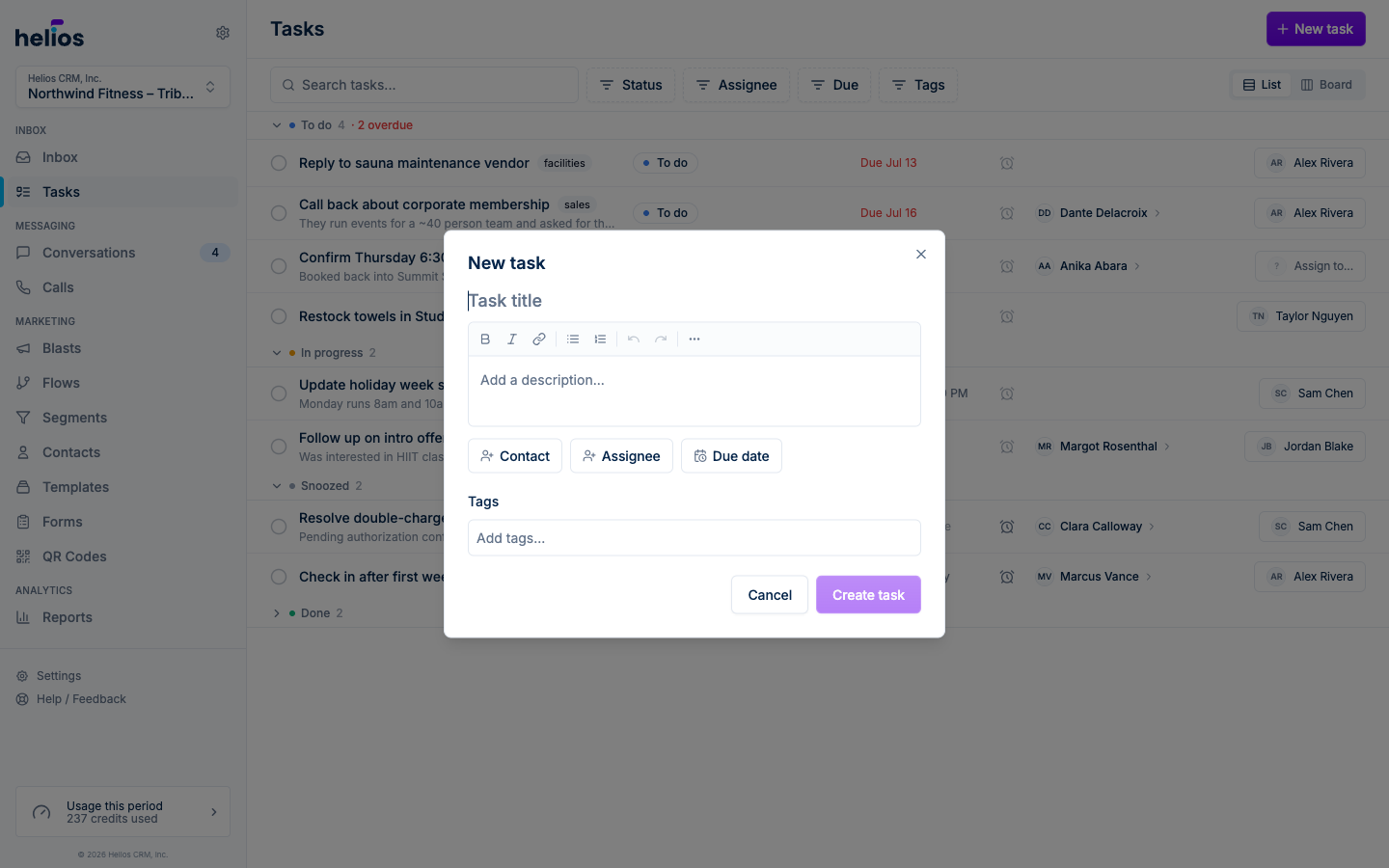
- Task title: the only required field
- Description: rich text with bold, italic, links, and lists
- Contact: link the task to a contact so it shows up on their record
- Assignee: who owns it (or leave it unassigned for anyone to pick up)
- Due date: when it needs to happen
- Tags: freeform labels like
follow-uporequipment, filterable on the Tasks page
Where you can create a task
- Tasks page: the New task button in the top right.
- Inbox: the Tasks tab has the same New task button.
- Inside a conversation: the thread’s actions menu has Create task, which pre-links the contact and the conversation. The task keeps a View conversation link back to the thread.
- Contact sidebar: the Tasks tab beside a conversation shows the contact’s open tasks and has a New button that pre-fills the contact.
- From a flow: the Create task action creates a task automatically when a contact reaches that step, linked to the contact.
Assignment
Pick an assignee from your team, or choose Unassigned to put the task in the shared pool. You can change or clear the assignee at any time from the task or inline in the list view.
When you assign a task to someone else, they get a push notification (“You were assigned a task…”) on web and iOS. Assigning a task to yourself doesn’t notify you.
Each teammate can turn Task notifications on or off per inbox under Settings → Notifications. That covers assignments, comments, due-date reminders, and snooze wake-ups.