Email blasts
Send designed or plain-text email campaigns with the built-in email builder.
When email is enabled on your workspace, the Send a blast button becomes a menu: choose Email or Text message. Email blasts follow the same three-step wizard as SMS blasts. Only the compose step changes.
Compose an email
The compose step opens the full email builder:
- Subject: the subject line recipients see.
- Preview: the inbox preview text shown under the subject in most email clients. Keep it under 90 characters.
- Email type: choose Design for the drag-and-drop block builder, or Rich text for a simple formatted note that reads like a personal email.
In Design mode, the left panel has two tabs:
- Blocks: the same block palette as the email template builder: Heading, Text, Button, Image, Divider, Spacer, Header, and Footer.
- Templates: apply a saved email template as the starting point, then tweak the content for this campaign. Revert to a blank email undoes an applied template.
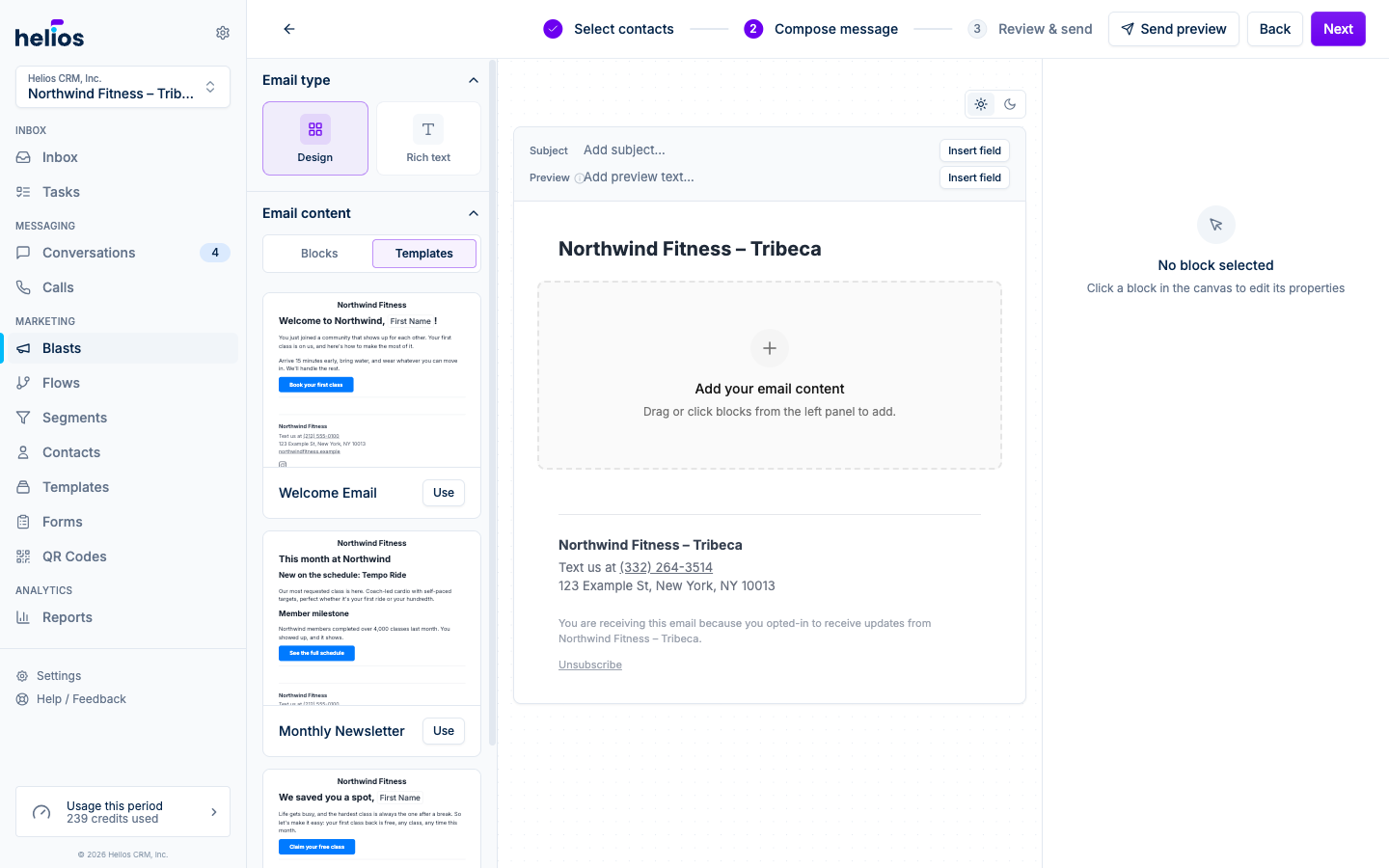
Use Send preview at any point to email a test copy to yourself. Merge tags render with sample values.
Review and send
The review step shows the sender, Subject, recipient list, and credit estimate, with the same Send immediately / Select time choice as SMS. Every 10 emails use one credit, so a blast to 500 people costs 50 credits (see how credits work). The buttons read Send email now or Schedule email.
Email-specific metrics
Because email supports open and click tracking, completed email blasts report more than SMS:
- Delivered, Opens, Replies, Clicks, and Opt out rates
- Per-recipient breakdowns under the Opened and Clicks tabs on the blast detail page
See Metrics and recipients for how to read the results.
Next steps
- Email template builder: build reusable designs with your branding baked in.
- Scheduling: drafts, scheduled sends, and cancelling.