Importing and exporting
Bring contacts in by CSV and export them back out.
Import contacts
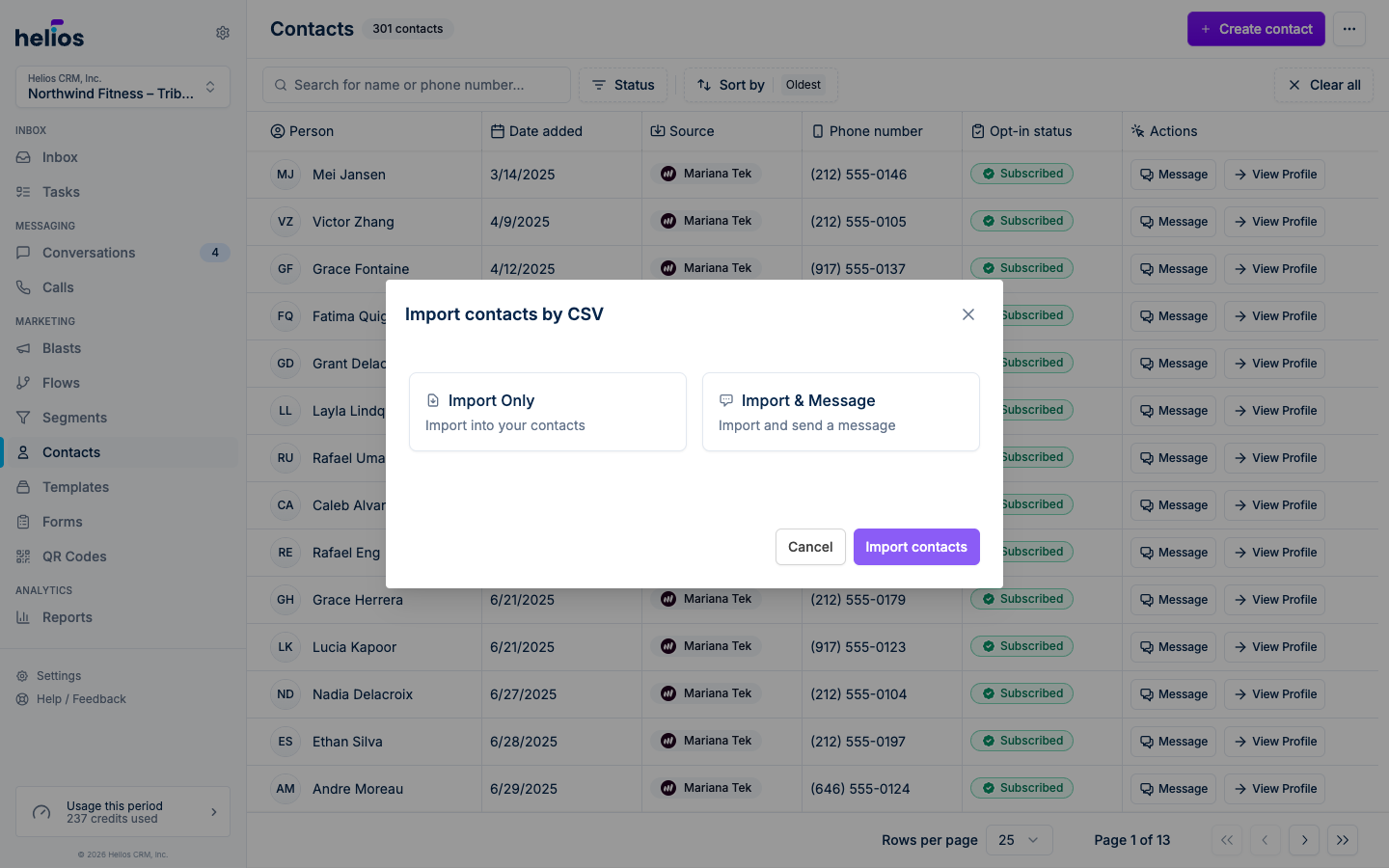
From the Contacts page, open the ⋯ menu and choose Import contacts. That opens a dedicated import page with four steps: upload, map columns, preview, and import. Every import also creates a static list so you can message the group right away. The Import name defaults to the date and time (for example, Contact import - Monday Aug 31, 3). You can change it.
1. Upload
Confirm the import name, then drag and drop one or more CSVs (or pick them from your computer), up to 10MB total. Files dropped together must use the same columns. Your column headers don’t need to match any particular format: you map them to Helios fields in the next step. Download a sample CSV if you want a starting point.
2. Map columns
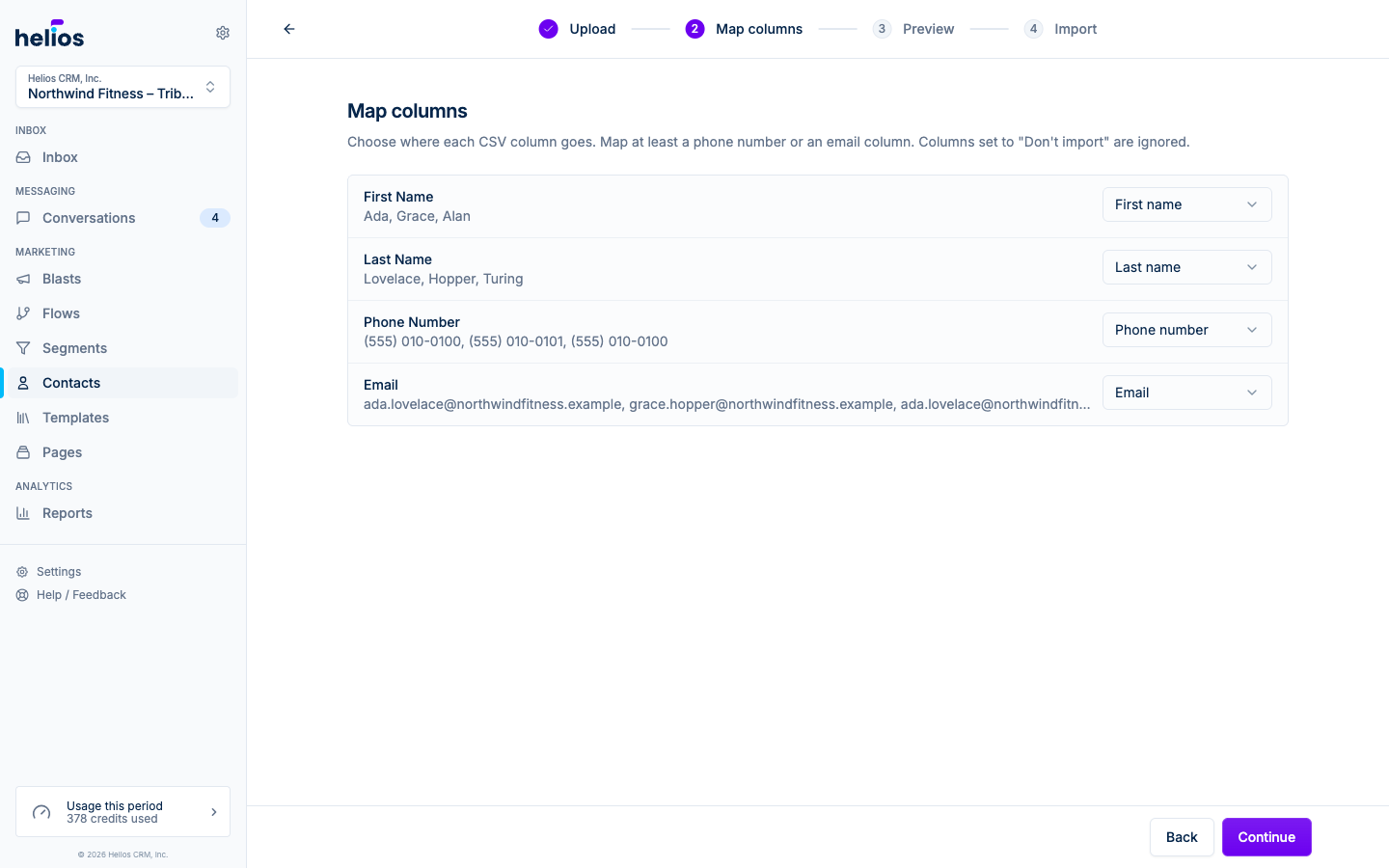
Every column from your file is listed with a few sample values and matched automatically to a Helios field (first name, last name, phone number, email, tags). You can change any match:
- A tags column maps to the same tags you edit on a contact. Comma-separated values in a cell become multiple tags.
- Columns that aren’t a standard field become custom properties, with a type picker (Text, Number, Date), ready to use in segments and message personalization.
- Set a column to Don’t import to leave it out.
- Each contact needs a phone number or an email address, so at least one of those columns must be mapped. Email-only contacts are fully supported: you can reach them by email and add a phone number later.
3. Preview
Every row is validated before anything is written:
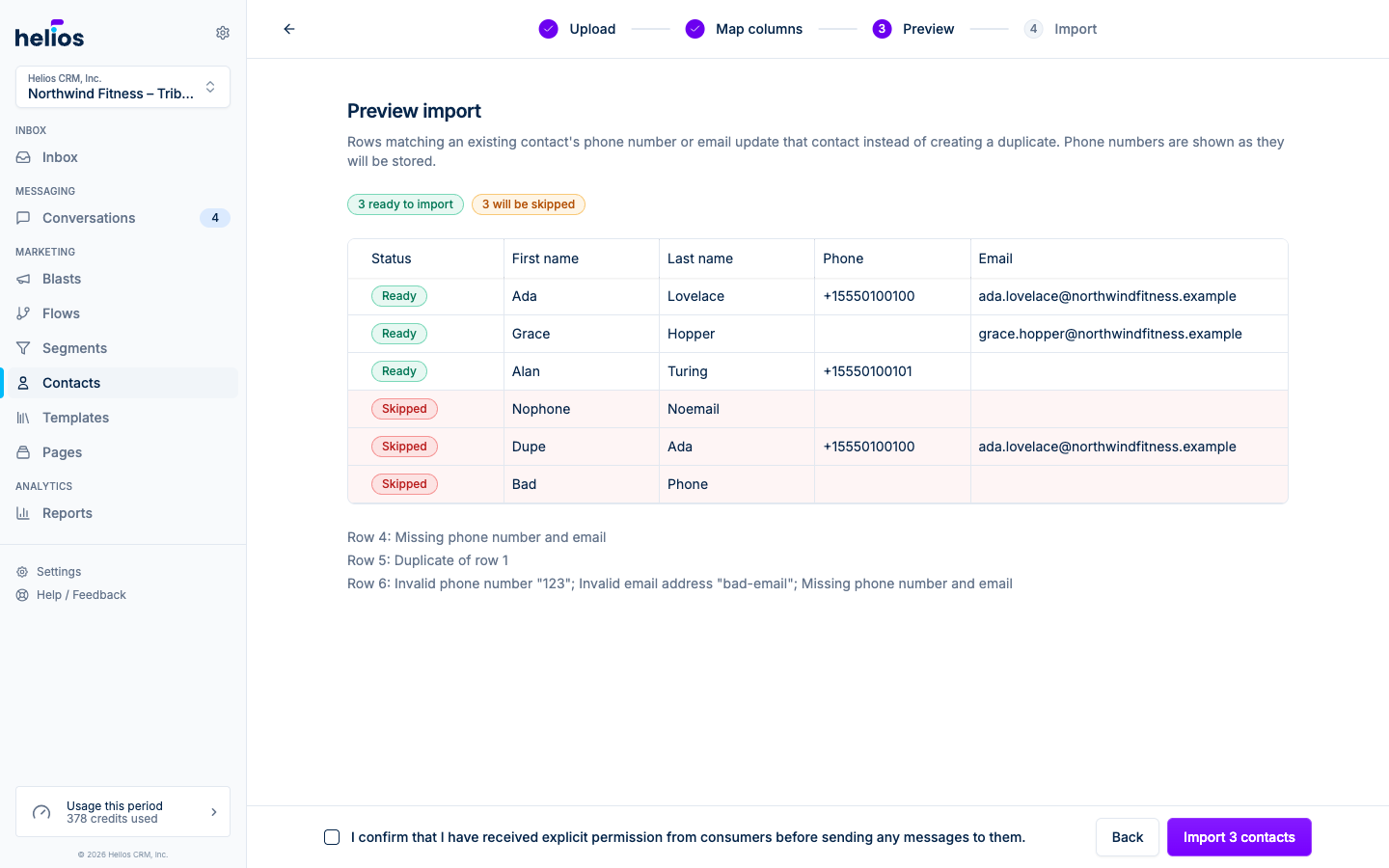
- Phone numbers are shown exactly as they will be stored.
- Rows with an invalid phone or email, and rows missing both, are flagged with the reason, so there are no silent surprises.
- Rows that share a phone number or email (within one file or across several uploaded files) are marked Merged and combined into one contact. Tags from every row are kept (including custom columns with “tag” in the name, such as Event Specific Tag), so you can upload an all-attendees file and a VIP file together and contacts on both get both tags.
- Next to Import, check the box: I confirm that I have received explicit permission from consumers before sending any messages to them. That’s not a formality; see Opt-outs and compliance.
4. Import and results
A progress bar tracks the import, then a summary shows how many contacts were created, updated, and skipped. If any rows were skipped, download them as a CSV with a reason column, fix the data, and import that file again.
Duplicates
Contacts are matched by phone number first, then by email. If an imported row matches an existing contact, that contact is updated rather than duplicated, so it’s safe to re-import a refreshed CSV.
Export contacts
The same ⋯ menu has Export contacts, which downloads a CSV (contacts-export-{date}.csv) with:
- First Name, Last Name, Phone Number, Email
- Source, Opted Out, Date Added
- Your custom properties as additional columns
Use it for backups, analysis in a spreadsheet, or moving data to another tool. Integration-synced data stays in its source system; the export covers core fields and your own properties.