Actions
Everything a flow can do, including messages, lists, tags, properties, and webhooks.
Actions are the steps that actually do something. Drag them from the Actions section of the block palette, or insert them with the + buttons between nodes.
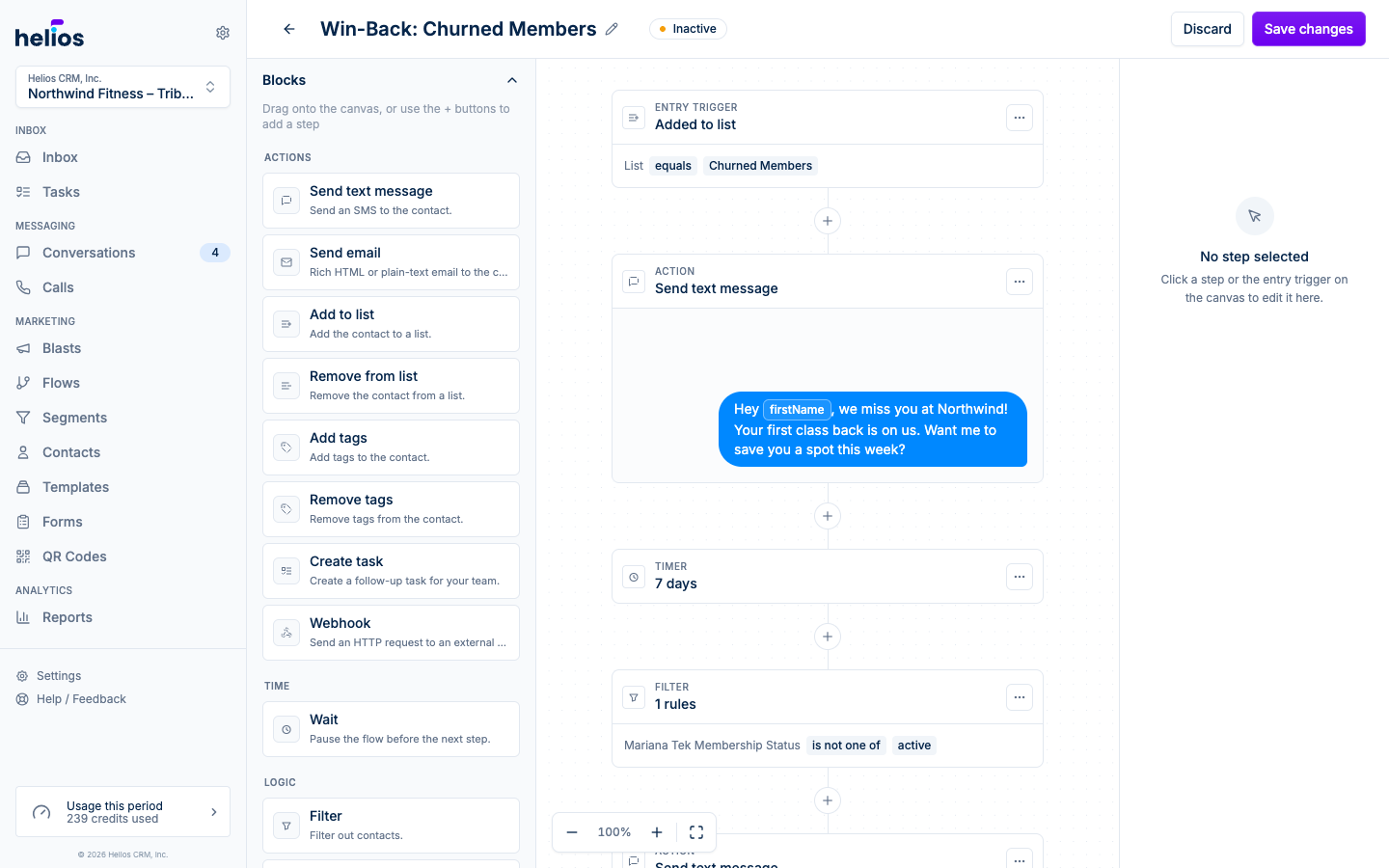
Send text message
Sends an SMS (or MMS) to the contact. Two modes:
- Write message: compose the text inline, with the same personalization fields as blasts. Use the toolbar to attach an image (JPEG, GIF, or PNG) or your inbox contact card so the send goes out as MMS, just like the inbox composer.
- Use template: pick a saved SMS template. If the template has attachments, those send with the message. If you haven’t made any yet, the editor links you to create one.
Messages from flows respect the flow’s delivery window and land in the contact’s normal conversation thread, so replies show up in your inbox.
Send email
Sends a designed or plain-text email. Click Edit email to open the same composer used by email blasts: subject, preview text, and either the block builder or rich text.
By default the email goes to the contact’s email address. To send to a different address instead (for example, an internal notification), open the step’s settings panel and change Send to to Custom email address, then enter the address. The composer shows the current choice on its To line. These emails still appear in the contact’s conversation for reference, marked Staff email with the address they went to, and they do not carry the contact’s unsubscribe link.
Requires email to be enabled on your workspace with a verified sending domain.
Send text or email
One step that tries text first, then email. Helios texts the contact when they have a phone number and haven’t opted out of SMS. If they can’t be texted but have a reachable email, the email variant sends instead. Each contact gets at most one of the two. The default playbooks Helios adds when you connect Mariana Tek, Mindbody, or fitDEGREE use this step for every message.
Configure both sides in the step:
- Text message: the SMS (or MMS) body, with the same attachments as Send text message.
- Email: subject, optional preview text, and a simple personal email body. This is not the full designed-email composer. Line breaks are kept, and Helios adds your unsubscribe footer.
If the contact has no reachable phone or email, or has opted out of both, choose what happens:
- Skip this step: nothing is sent and the flow continues.
- Create a task for your team: same fields as Create task, so someone can follow up by hand.
Requires email to be enabled on your workspace, the same as Send email.
Add to list / Remove from list
Adds the contact to (or removes them from) a static list of your choice. Combined with the Added to list trigger, this is how flows chain together: flow A adds contacts to a list, which triggers flow B.
Add tags / Remove tags
Adds or removes tags on the contact record: type a tag and press Enter. Tags are searchable on the Contacts page and usable as segment criteria, so tagging inside flows (“attended-open-house”, “vip”) builds audiences for later.
Set property
Sets a custom property on the contact: a Property key and a Value (string, number, boolean, or date). Useful for stamping state like welcome_completed: true that other segments or flows can key off.
Create task
Creates a task for your team when the contact reaches this step, linked to the contact automatically. Set the title, description, and tags, optionally pick an assignee (who gets a push notification), and give it a relative due date, for example due 2 days after the step runs. Great for making sure automated outreach gets a human follow-up: send a message, wait, then create a “call if no reply” task.
Webhook
Sends an HTTP request to an external URL when the contact reaches this step. Click Edit webhook to set the URL and shape the payload; contact fields can be merged in. This is the escape hatch for anything Helios doesn’t do natively: notify Slack, write to a Google Sheet via Zapier, hit your own API.
Wait
Technically in the Time section of the palette, but you’ll use it constantly between actions: pause the flow for a period (or until a specific date) before continuing. Details in Logic and timing.
Per-step recipients
On an active flow, every action node links to a recipients view showing exactly who has hit that step, which is handy for debugging why someone did or didn’t get a message.