Sending messages
Find conversations, reply with the composer, and schedule messages for later.
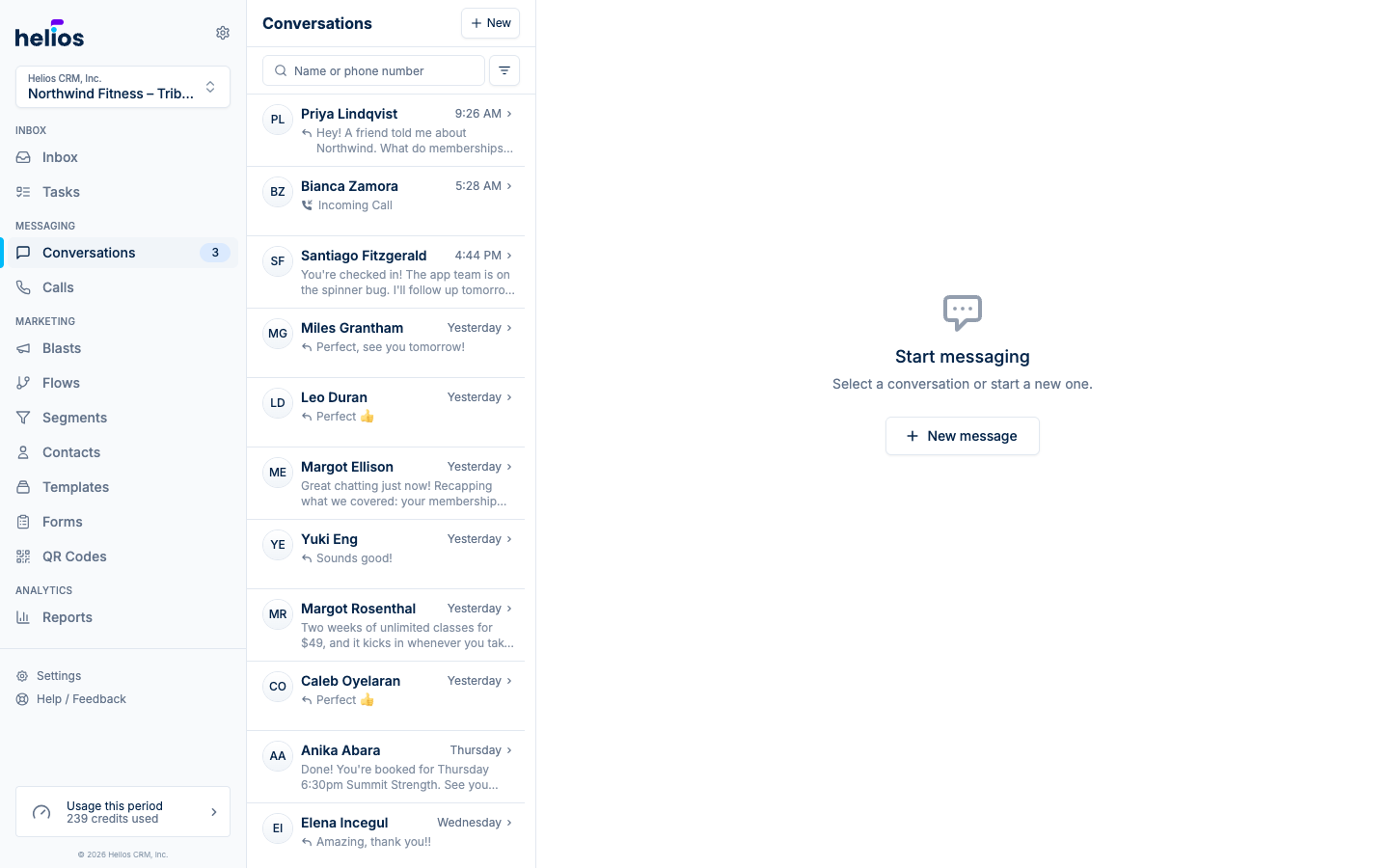
The Inbox page is your team’s daily starting point: your thread list on the left, the open conversation in the middle, and the contact sidebar on the right. Chats, Calls, and Tasks tabs at the top of the list switch between those three surfaces without leaving the inbox.
Find a conversation
The bar under the tabs filters the list. Filters stack, so you can turn on Unread and Unresponded together.
- Search (magnifying glass): opens a full-width field for name or phone number. Escape closes it; the X button clears the query.
- Unread: threads you have not opened yet.
- Unresponded: threads where the customer sent the last message.
- Awaiting reply: threads where you sent the last message and the customer has not written back. Unresponded and Awaiting reply are opposites, so turning one on turns the other off.
- Status: All (default) and Open show your read and unread threads. Done shows handled threads, and Prospect shows people a blast reached who have not replied (they stay out of the other lists so a blast does not flood your inbox). The button reads Status until you pick one.
- Assignee: Me first, then Unassigned, other teammates, then All.
If nothing matches, the list says no messages for the selected filters and offers Clear all filters.
Each thread preview shows the last activity, whatever the channel: a message snippet, “Missed Call”, “Voicemail”, “Form submission”, or “Email received”. Unread threads carry a dot. The list groups threads by date (Today, Yesterday, This week, and older months); the group label stays pinned as you scroll.
Start a new conversation
Click New at the top of the list, then pick a contact or enter a phone number. You can also start a thread from any contact’s profile.
The composer
Type your reply and press Enter to send (Shift+Enter adds a line break). The toolbar gives you:
| Tool | What it does |
|---|---|
| Insert emoji | Emoji picker. |
| Insert image | Attach a JPEG, GIF, or PNG. Sends as MMS. |
| Insert contact card | Share your inbox’s contact card so customers can save your number. |
| Insert template | Drop in a saved SMS template, or create one on the spot. |
| Schedule | Pick a date and time; the send button becomes Schedule. |
The counter under the composer shows characters and SMS segments (for example, “152 chars / 1 msg”) so you know what a message will cost before sending. Emojis and long texts increase segment count.
Schedule a message
Click the calendar icon, choose when the message should go out, and hit Schedule. Scheduled messages appear in the thread until they send, and you can cancel them before the send time.
Thread actions
The Actions menu in the thread header covers day-to-day housekeeping:
- Mark read / Mark unread
- Mark done / Mark open: done conversations move out of your open filter and stay searchable
- Opt out / Opt in: manage the contact’s messaging consent
- Block / Unblock
Marking a thread done doesn’t delete anything. The full history stays on the contact, and the thread reopens automatically if the customer writes back.