Invite your team
Add teammates to your organization and control which inboxes they can access.
Helios doesn’t charge per seat, so bring everyone who talks to customers. Teammates share the same inboxes, see the same conversation history, and pick up threads for each other.
Send an invite
Open team settings
Go to Settings → Team.
Invite a teammate
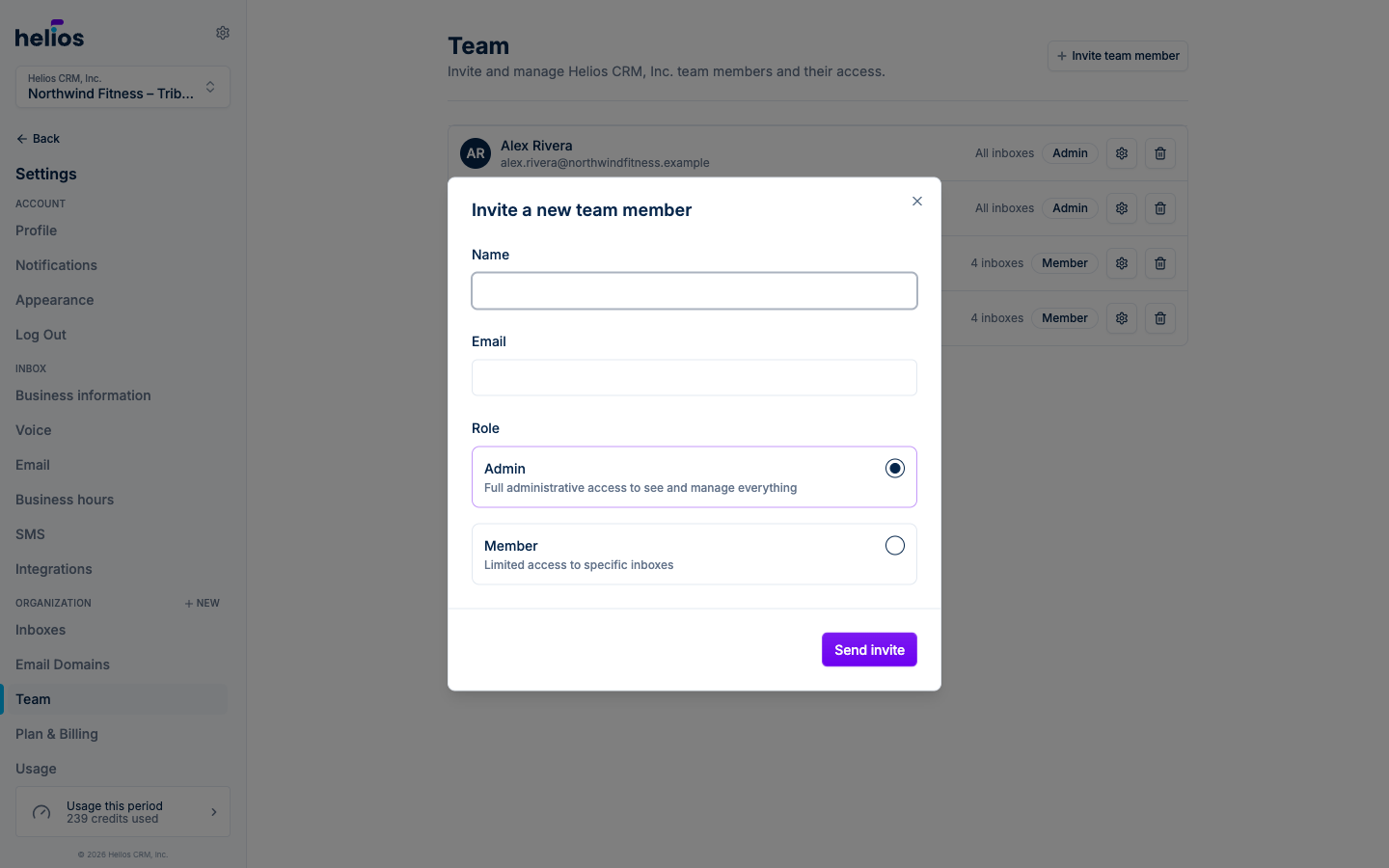
Click Invite team member and enter their name and email.
Pick a role
Choose Admin or Member. For members, select which inboxes they can access with Choose inboxes.
Send it
Click Send invite. Your teammate gets an email with a link to create their account.
Roles
| Role | What they can do |
|---|---|
| Owner | The person who created the organization. Full access to everything, including billing. Can’t be removed from the team page. |
| Admin | Full administrative access to see and manage everything across all inboxes. |
| Member | Limited access to the specific inboxes you choose. Ideal for location staff who only need their own inbox. |
Manage your team
The team page lists every member with their Name, Role, and Access (which inboxes they can use). From here you can:
- Edit a member with the gear icon to change their role or inbox access.
- Remove a member with the trash icon. You’ll be asked to confirm.
- Revoke a pending invite from the Invited Members section if it hasn’t been accepted yet.