Assignment and statuses
How conversations find an owner, how notifications route, and what each status means.
Speed to response wins leads, and clear ownership keeps threads from being double-handled or dropped. Helios’s assignment model is built around both.
How assignment works
A new lead notifies everyone
When a new conversation comes in, the whole team gets a push notification on web and iOS. Whoever’s free can jump on it.
First responder owns it
The first person to reply is automatically assigned the thread. From then on, only the owner gets notifications for that conversation.
Handoffs are explicit
The owner can reassign at any time from the assignee button in the thread header. The new assignee gets a push notification and takes over.
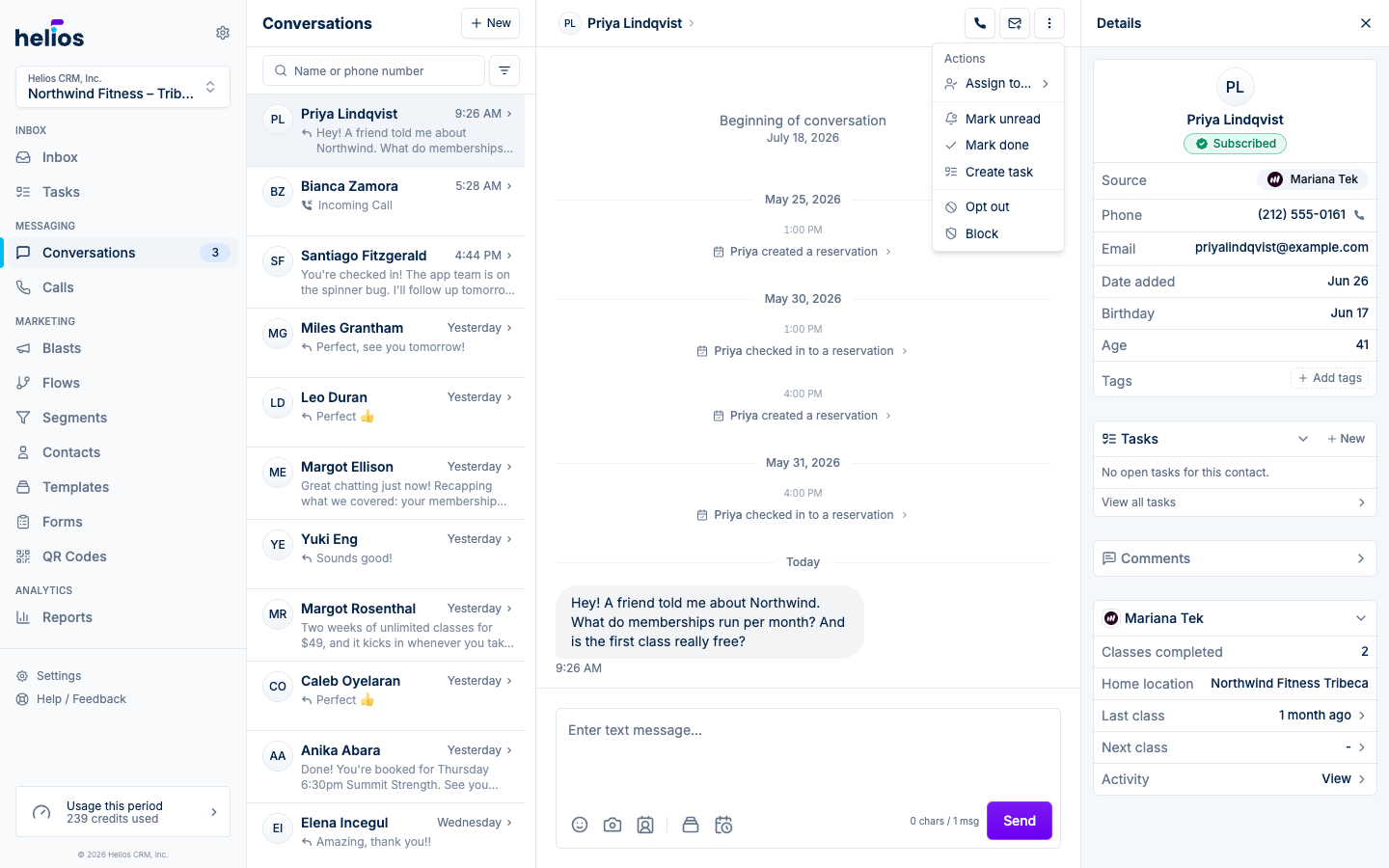
You can also assign or unassign manually: click the assignee button in the thread header and pick a teammate, or clear the assignment to put the thread back in the shared pool.
The Me assignee filter on Inbox shows only the threads assigned to you.
Conversation statuses
| Status | Meaning |
|---|---|
| Unread | New activity nobody has looked at yet. Shown with a dot in the thread list. |
| Open (read) | Someone has seen the latest message. |
| Prospect | A potential customer, filterable separately from ongoing conversations. |
| Done | Handled and moved out of the open list. Use Mark done in the Actions menu. |
Two behaviors keep statuses honest:
- Opening an unread thread marks it read automatically.
- When a customer writes back to a Done thread, it reopens as unread automatically, so nothing gets lost in the archive.
Notifications
Each teammate controls their own notifications under Settings → Notifications, including incoming call ringing per inbox. The iOS app adds push notifications for new leads and messages wherever you are.