Flows overview
Automate messaging with a visual canvas, with triggers, actions, logic, and timing.
A flow is an automation: a contact enters through a trigger, then moves through a sequence of actions (messages, list changes, tags, webhooks) with waits and branching logic in between. Build one welcome flow and every new lead gets the same great follow-up, forever.
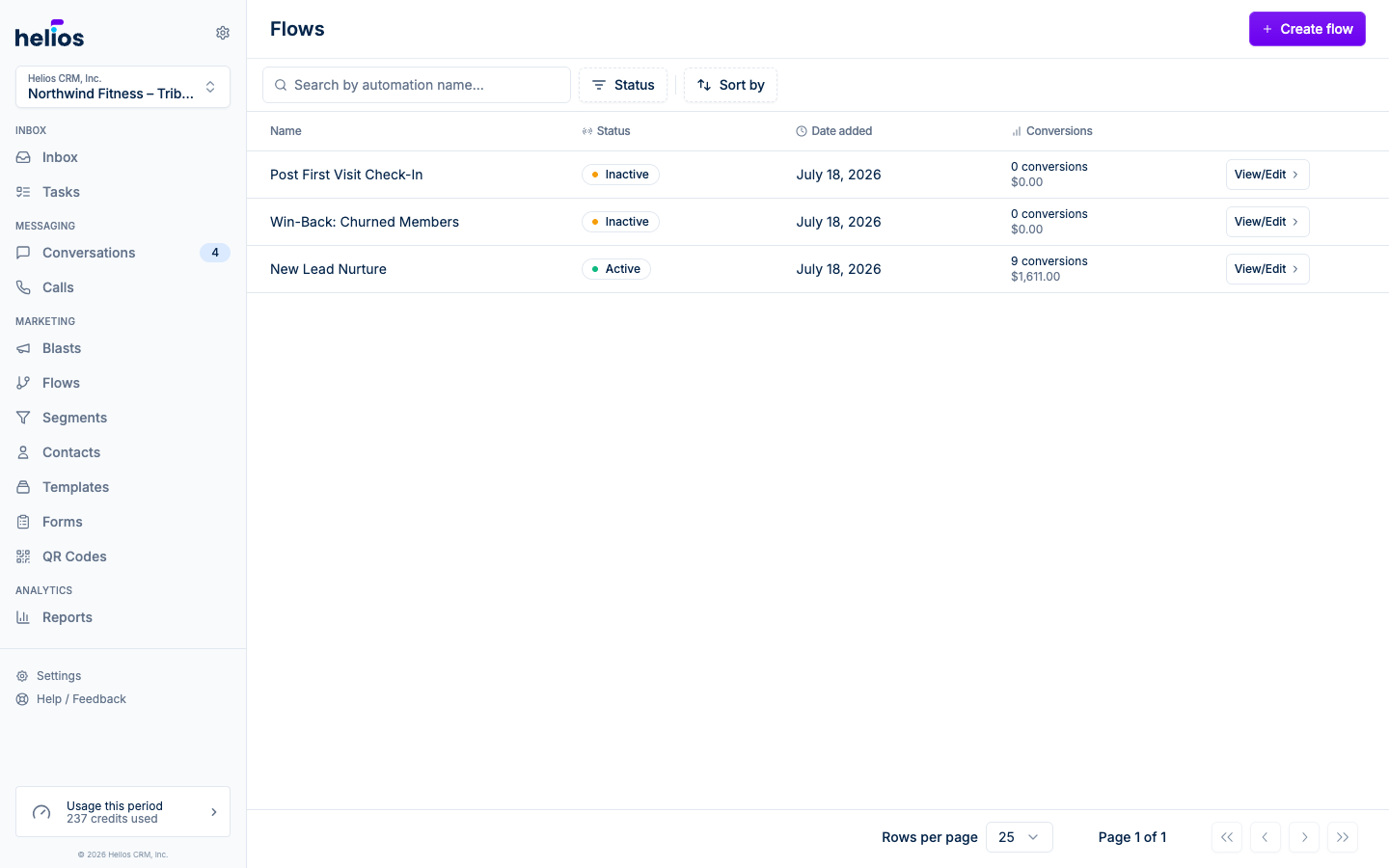
The Flows page in the sidebar lists every automation. If Helios seeded playbook journeys for your booking system and some are still off, they appear at the top so you can review and turn them on. Filter the rest by lifecycle tag (Sales, Onboarding, Intro offer, Retention, Win-back, Billing), switch between cards and a table, and each row shows status, creation date, and conversions with attributed revenue.
Create a flow
Click Create flow. Helios creates a draft (named Draft - {date}, rename it in the settings panel) and drops you into the editor.
The editor is a canvas with a left panel:
- Blocks: the palette of steps. Drag a block onto the canvas, or click the + buttons between nodes to insert a step. Blocks are grouped into Actions, Time, and Logic.
- Exit triggers: conditions that remove a contact from the flow early (same options as entry triggers).
- Delivery window: restrict when messages send: toggle Limit delivery hours and set hours per day, with Apply to all days and Weekdays only shortcuts. A message that comes due outside the window waits until it reopens.
- Additional options: the flow’s Name and its Re-entry policy: Unlimited entries, Once per contact, or a Custom limit.
Anatomy of a flow
- Entry trigger: what causes a contact to enter: an incoming keyword, a form submission, being added to a list, or a customer event. See Triggers.
- Steps: any mix of actions (send text, send email, send text or email, add tags, webhook…), waits, and logic nodes (filter, if/else). See Actions and Logic and timing.
Saving and activating
- On a draft or inactive flow, Save changes stores your edits. The flow does nothing until you activate it.
- On the flow page, Start automation activates it, and entry triggers start being evaluated immediately. Pause automation stops new entries.
- Editing an active flow starts a draft: your changes don’t affect the live version until you click Publish changes and confirm Publish now. If contacts are mid-flow, a banner shows how many are in progress.
A validation bar flags issues (“2 issues need to be fixed before saving”), for example an action missing its list, or a message with no body.
Monitoring a live flow
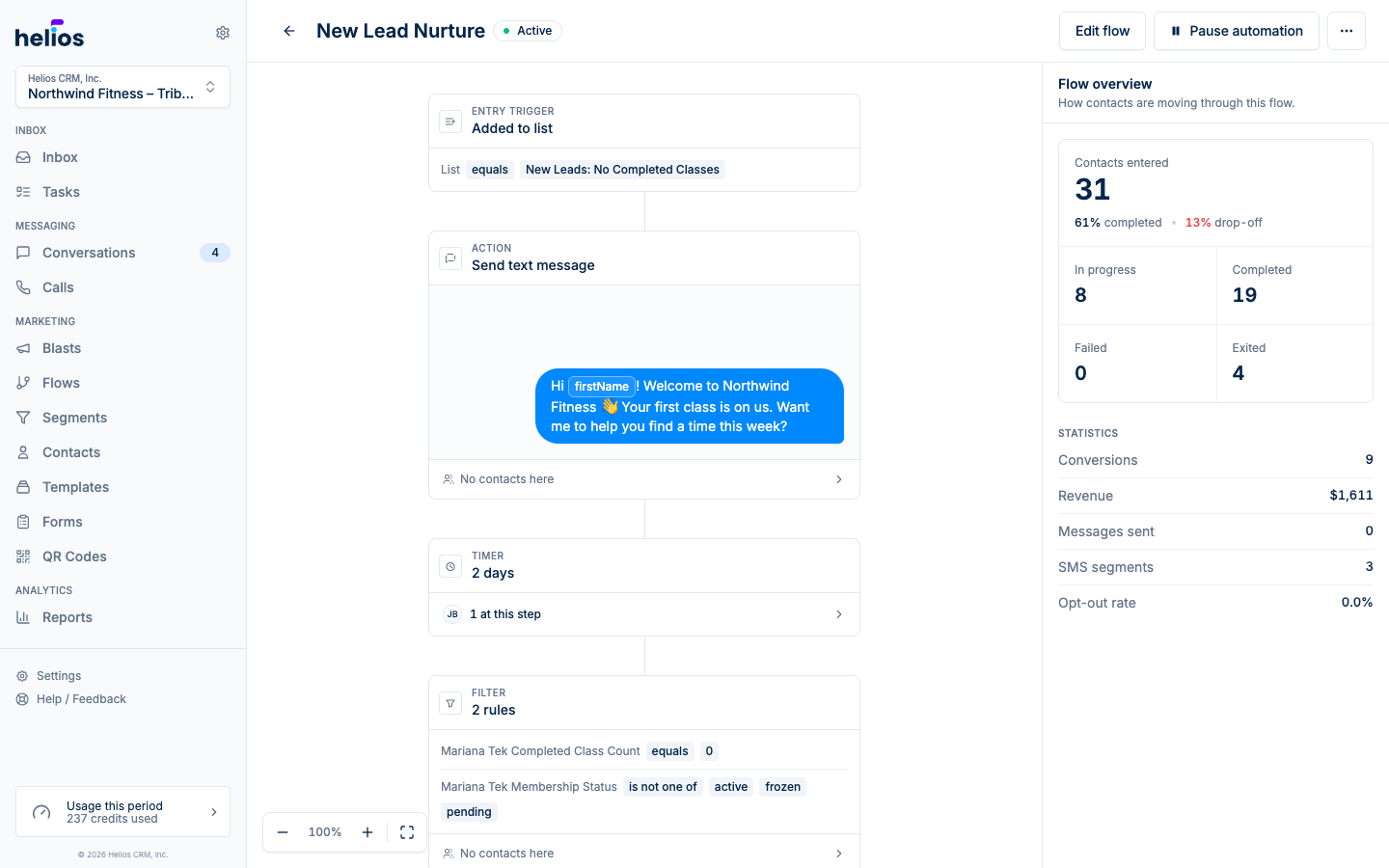
The active flow page shows the canvas read-only with a Flow overview sidebar:
- Contacts entered, with % completed and % drop-off
- Counts for In progress, Completed, Failed, and Exited
- Statistics: conversions, revenue, messages sent, SMS segments, and opt-out rate
Click any step to open Step contacts: the people currently at (or who passed through) that step.
Next steps
- Triggers: every way a contact can enter a flow.
- Actions: everything a flow can do.
- Logic and timing: waits, filters, and if/else branches.