Pages: landing pages that sell your memberships and schedule
Pages now helps you start with the visitor action you want, then builds a focused landing page around it. Choose a goal, use conversion-ready recommendations from your synced data, and arrange the page directly on the canvas.
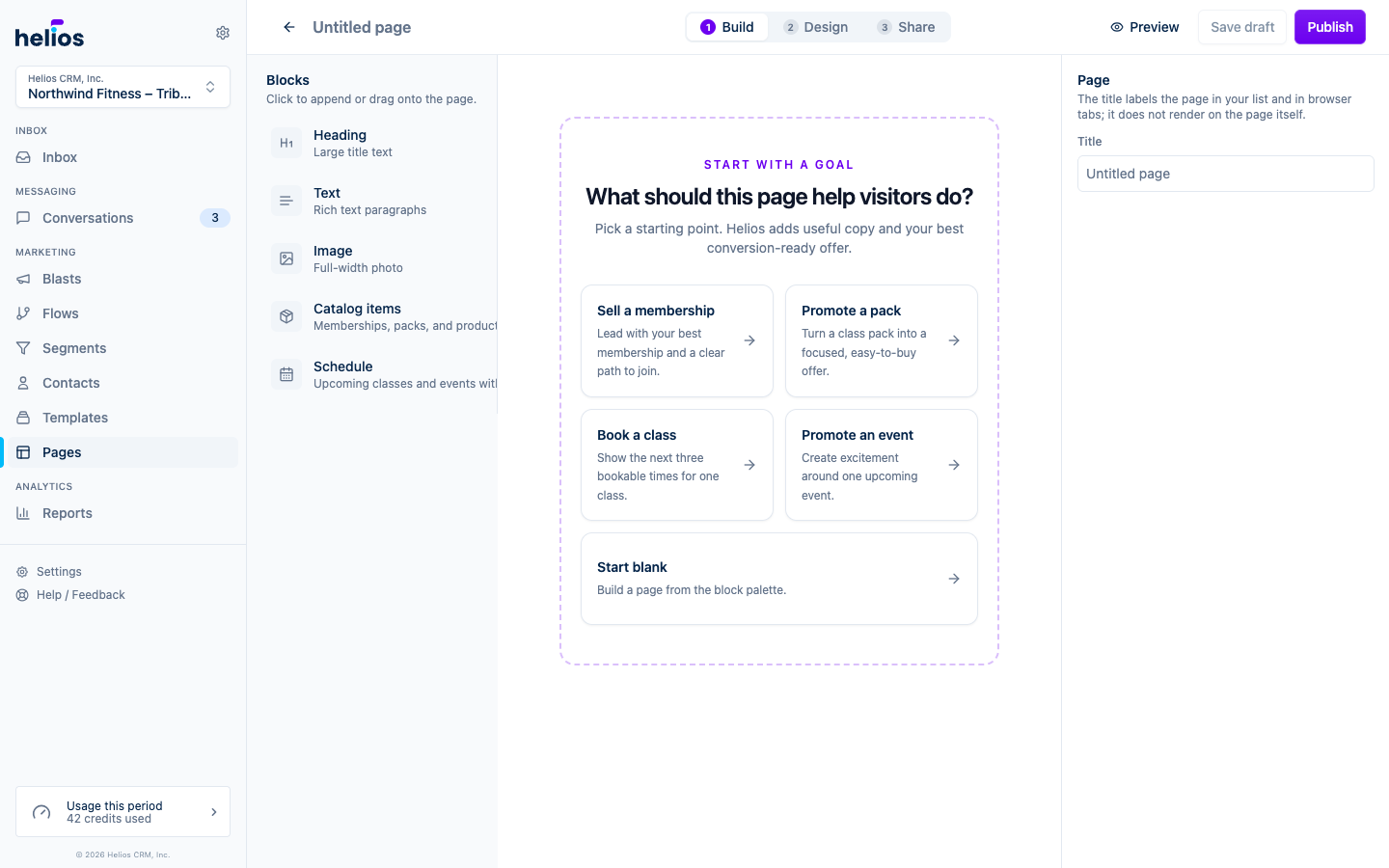
- Start with a goal: choose a visitor outcome (intro offer, membership, pack, class, event, or weekly schedule), or start from scratch.
- Pick offers that can convert: recommendations prioritize active records with working checkout or booking links and explain when a record needs attention.
- Build on the canvas: drag blocks into place, select them to edit, and use the block toolbar or keyboard to reorder, duplicate, and delete.
- Showcase commerce clearly: featured offers get a strong checkout action and branded image fallback, while event blocks stay focused on the next few bookable times or one promoted event.
- Put your whole schedule on the page: the new Schedule block is a browsable weekly schedule with day tabs, class descriptions, a limited-spots warning when a class is filling up, and the right action on every session (Reserve, Join waitlist, Full, or Ended). It syncs from your booking software hourly with nothing to maintain.
- Frame the page with your brand: optional Header and Footer blocks pin your logo to the top and your contact info and links to the bottom, pre-filled from your Brand kit and inbox settings.
- Use your own photos: click the thumbnail on any picked item to upload a custom card image that replaces the synced one on that page, with the synced image one click away.
- Catch hesitant visitors: adding a Footer also adds a “Send us a text” button that starts a text to your Helios number, so undecided visitors turn into conversations in your inbox. On by default when a Footer is on the page, with a switch on the Footer to turn it off.
See Landing pages for the full guide.